![logo.png]](https://help.teamsense.com/hs-fs/hubfs/logo.png?height=40&name=logo.png)
Applies to:
- All TeamSense customers with attendance data flowing
- HR users (Generalists and Directors) with access to Attendance Insights
- Web — TeamSense admin portal
- Note: At-risk employees and Points proximity cards require a points integration
Before you start:
- You need: HR user access to the TeamSense admin portal
- Time required: 5 minutes
View your Attendance Insights dashboard
- Log in to your TeamSense admin portal.
- Navigate to Attendance Insights from the main navigation.
- Four hero cards appear at the top: Absence rate, NCNS rate, At-risk employees, and Top call-off channel.

- Standard cards appear below: Absences by status, Absence trends, Absence patterns, Call-off channels, and Absences by division. If your account has a points integration, you'll also see Points proximity.
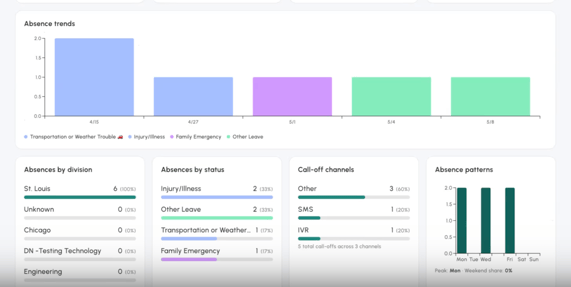
- Four hero cards appear at the top: Absence rate, NCNS rate, At-risk employees, and Top call-off channel.
- The dashboard loads with a default date range of Last 30 days. All cards reflect the selected range.
What success looks like: Your absence rate, NCNS rate, and supporting cards are visible and loaded. If At-risk employees or Points proximity cards aren't showing, your account may not have a points integration — contact your CSM to enable one.
Filter your dashboard by date range, division, or occurrence status
- Locate the filter bar at the top of the Attendance Insights page.
- To change the date range, select a preset — Last 30 days, Quarter to date, or Year to date — or choose Custom to set your own start and end dates.
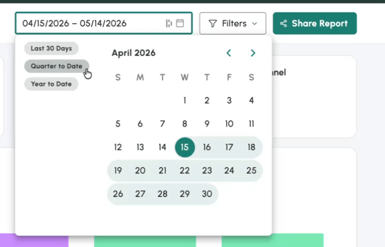
- To filter by division, select from the division dropdown.
- To filter by absence occurrence status, select from the occurrence status dropdown.
- All hero cards and standard cards update automatically when filters are applied.
What success looks like: Your KPIs and cards reflect the selected filters. The absence rate and NCNS rate hero cards also display a period-over-period comparison against the equivalent prior period (for example, this month vs. last month).
Note: Data refreshes nightly. Actions taken today will appear in your dashboard tomorrow.
Share a branded attendance report
- From the Attendance Insights page, apply any filters you want reflected in the report (date range, division, occurrence status).
- Click Share Report.
- For email or SMS: your browser opens a pre-drafted message in your default email or messaging app with the report link included.
- For link copy: copy the link and paste it wherever you need — a Slack message, meeting invite, or presentation deck.
- If nothing happens when you click Share, your browser may be blocking popups from TeamSense. See Troubleshooting below.
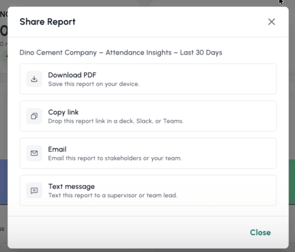
- Send to your recipient. They don't need a TeamSense login to view the report.
What success looks like: Your recipient receives a polished, customer-branded attendance summary they can open without logging into TeamSense. The link is active for 30 days from the date you generated it.
Note: Reports are generated on demand — there is no scheduled or automated delivery today. Each share requires an HR user to generate and send manually.
Note: Recipients see a static branded PDF, not a live interactive view. If a recipient wants to filter or explore the data themselves, they'll need a TeamSense login.
Troubleshooting:
The Share button doesn't do anything.
Your browser is likely blocking popups from TeamSense. Go to your browser settings, find the popup blocker, and allow popups for TeamSense. Then try again.
My absence or NCNS rate looks higher than it did before.
This is expected and correct. We updated the way absence rates are calculated — the denominator now counts only employees who were active during the selected date range, not all employees in your system. Your new numbers are accurate; prior reports were understating rates. If you're comparing a new report to an older one, expect rates to shift upward.
My NCNS rate card is empty or much lower than expected.
This release introduced a new system-standard NCNS occurrence status. If your team previously used a custom occurrence status to classify no-call-no-shows, your historical data may not be reflected in this card yet. Contact TeamSense Support — we'll help sort it out.
A recipient says their share link isn't working.
Share links expire 30 days after they're generated. If the link is more than 30 days old, return to Attendance Insights and generate a fresh share. If the link is within 30 days and still won't load, contact TeamSense Support.
I can't see the At-risk employees or Points proximity cards.
These cards are only available for customers with a points integration. Contact your CSM if you'd like to enable one.
I can only see data for one of my sites.
Dashboard scope depends on your account setup. Customers with a single company ID across all sites see aggregated data. Customers with separate company IDs per site see only the data for the site they're logged into. Contact your CSM to discuss cross-site visibility options.
Need more help? Contact TeamSense Support at support@teamsense.com