![logo.png]](https://help.teamsense.com/hs-fs/hubfs/logo.png?height=40&name=logo.png)
Overview
At the end of a shift, the outgoing supervisor gets a text with a link to leave a quick note — equipment issues, production status, quality holds, anything the next person should know. It takes about 60 seconds. When the next supervisor’s shift starts, that note is waiting for them at the top of their shift-start screen, organized and easy to read.
No new app to download. No extra login. It runs on the same text messages your supervisors already use for Shift Start.
Who this is for?
- Outgoing supervisors — Team Leaders finishing a shift who want to pass along context to whoever’s covering next.
- Incoming supervisors — any Team Leaders starting a shift who want the picture before they hit the floor.
note 💡Shift Handoff is included automatically for every supervisor already enrolled in Shift Start.
What you need
- Your supervisors need to already be enrolled in Shift Start (Shift Digest).
- Text messaging (SMS) turned on for those supervisors in TeamSense — Shift Handoff runs on the same text-based flow as Shift Digest, so there’s no separate setup
How it works
Shift Handoff works the same way on both ends of the shift: the outgoing supervisor leaves a quick note, and the incoming supervisor sees it waiting for them. Here’s the step-by-step for each side.
If you’re finishing a shift (outgoing supervisor)
- When your shift ends, you’ll get a text with a link to leave a handoff note.
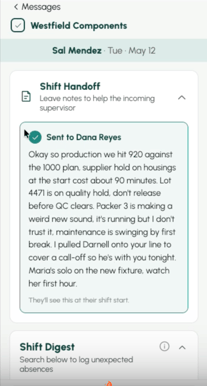
- Tap the link, then tap the mic on your phone’s keyboard and talk — or type, if you’d rather. About 60 seconds is usually enough: what happened, what’s broken, what to watch.
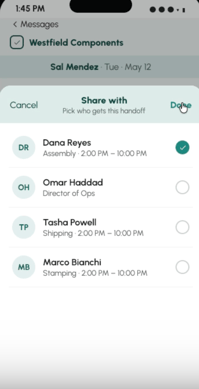
- Choose who should get the note. You can send it to one person or several at once — whoever’s coming on next.
- Send it. That’s it — no further steps, and you’ll see a confirmation once it’s sent.
A few things worth noting ✍️
- Once you send a note, you can’t edit it. If something changes, just send a quick follow-up note.
- You can also save a note to yourself, as a reminder for your next shift — in step 3, choose yourself as the recipient instead of (or in addition to) the next supervisor. It’ll show up on your own shift-start screen the same way an incoming note would.
If you’re starting a shift (incoming supervisor)
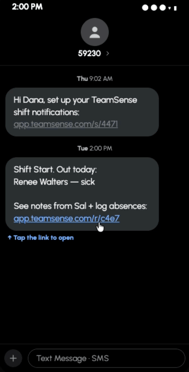
- When your shift starts, you’ll get a text letting you know a handoff note (or a few) is waiting for you.
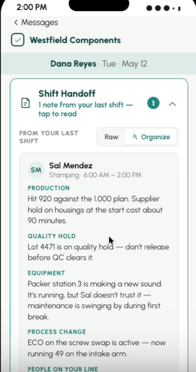
- Open your shift-start screen — the handoff note(s) appear at the top, above your attendance information.
- Each note is organized for you automatically into categories like equipment, production, quality, or open items, so you can scan it quickly. The full original note is always available if you want to read exactly what was said.
- If more than one supervisor sent you a note, you’ll see all of them listed — check the shift-start screen directly if your text only mentions one, since a single text can’t always list everything.
Frequently asked questions 🤔
Do I have to use it?
No. Shift Handoff is there whenever you want to use it, but nothing requires an outgoing supervisor to leave a note. If no note is left, the incoming supervisor simply won’t see one — that’s expected, not an error.
Can I send a note to more than one person?
Yes. You can select multiple recipients when you send a handoff note, and everyone you pick will get it.
Can I edit or delete a note after I’ve sent it?
Not currently — once a handoff note is sent, it’s final. If you need to correct or add something, send a new note.
I sent my note but never saw a confirmation — what should I do?
First, check your shift-start screen (or ask the recipient) to see if the note actually went through — it may have sent even if the confirmation didn’t display. If it’s not there, try sending it again. If you still don’t get a confirmation after a second try, reach out to your TeamSense support contact so we can check the message logs.
Will my supervisors see this on the attendance page?
No — handoff notes are only visible to the person who sent them and the person(s) they were sent to. They don’t appear on the attendance page and aren’t visible to HR or admins.
What if I open my handoff link more than once?
Handoff links are meant to be opened once. If you need to see a note again, it will still be sitting on your shift-start screen — you don’t need the original text link to find it.
Will this affect my current Shift Start experience?
No. Shift Handoff is additive — it doesn’t change how Shift Start works for logging attendance. It simply adds a second, optional prompt at the end of the shift.
Is this being monitored by HR or used for discipline?
No. Handoff notes are for the supervisors themselves — they’re not shared with HR, and they’re not used for performance or discipline purposes.
Related articles
- Shift Start (Shift Digest): Log attendance from your phone
- Setting up Shift Start for your team