![logo.png]](https://help.teamsense.com/hs-fs/hubfs/logo.png?height=40&name=logo.png)
What is Shift Start?
Shift Start gives front line supervisors real-time attendance visibility at the beginning of every shift — without an app, without a phone call, and without any new integrations.
When a supervisor is enrolled, they receive an SMS digest shortly before their shift begins showing everyone who has already called off. From there, they can log what they see on the floor — no-call/no-shows, late arrivals, and early departures — in a few taps. A second text at shift end prompts them to capture any remaining updates.
Everything supervisors log flows directly into the TeamSense attendance page, where HR can review and reconcile it alongside employee-reported call-offs.
Who uses Shift Start?
- Supervisors / Team Leads — receive the shift-start SMS digest and log attendance events from their phone
- HR / Admins — invite supervisors, view logged events on the attendance page, and reconcile records
Setting Up Shift Start
Prerequisites:
Before enrolling supervisors, confirm the following:
- Shift Start is enabled for your account (visible as a new page in Ops Hub)
- Each participating supervisor has SMS/text messaging enabled in TeamSense — Shift Start is SMS-only and cannot send email notification

Step 1: Open Shift Start in Ops Hub:
Log in to TeamSense and navigate to Ops Hub in the top navigation. Select Shift Start. You’ll see a short orientation panel — read through it before inviting anyone.
Step 2: Invite Supervisors
You have two options:
Option A — Bulk invite (recommended): From the Shift Start page in Ops Hub, invite multiple team leads at once. Each invited supervisor will receive a direct enrollment link by SMS.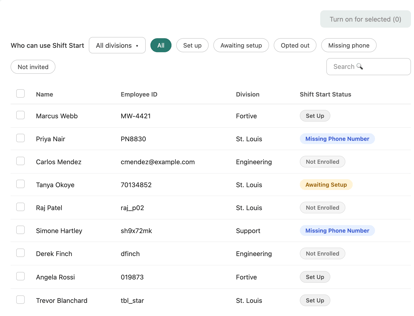
Option B — Per-supervisor toggle: Go to an individual supervisor’s employee page and toggle Shift Start on. This sends that supervisor their enrollment link. You can also set their shift times directly from this page.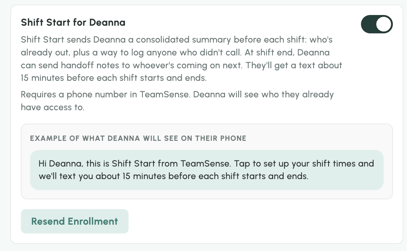
💡 Tip: Give supervisors a heads-up before their invite goes out. It improves take-up.
Step 3: Supervisors Complete Enrollment
Each supervisor receives a direct SMS link and completes a short self-enrollment form with:
- Shift start time
- Shift end time
- Timezone
- Days of the week
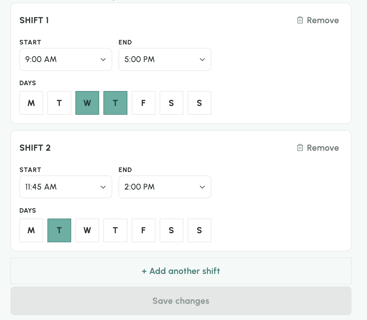
Once submitted, their shift-start digests begin the following shift. Supervisors manage their own enrollment — they can update shift times, add a shift, or remove a shift at any time from the bottom of the roster form.
How Shift Start Works for Supervisors The Shift-Start Text
Supervisors receive a single SMS approximately 15 minutes before their enrolled shift start time (this buffer is intentional, to account for SMS delivery). The text includes:
- A digest of employees who have already called off
- A link to the attendance logging form
Logging Attendance
From the form, supervisors can log three types of events for anyone on their roster:
|
Event |
What it means |
|
No-Call/No-Show (NCNS) |
Employee didn’t arrive and didn’t call off |
|
Late Arrival |
Employee arrived after shift start |
|
Early Departure |
Employee left before shift end |
Supervisors can also correct a logged event (e.g., change NCNS to Late Arrival if the person shows up later) or clear an entry if it was logged in error. Note: clearing an event permanently removes it from TeamSense.
What if the person isn’t on the roster? If a supervisor needs to log an event for someone who isn’t showing up in the form, there’s a write-in option — they enter the person’s name, select a status, and add optional details. HR will see this entry on the attendance page flagged for reconciliation.
The Shift-End Reminder
A second SMS at the supervisor’s enrolled shift-end time prompts them to log any remaining events — late arrivals or early departures that happened during the shift.
What HR Sees
All supervisor-logged events appear on the TeamSense attendance page alongside employee-reported call-offs. A new Source column shows where each event came from — entries logged by supervisors are labeled “Supervisor” so HR can distinguish them from employee-initiated call-offs.
HR is responsible for reviewing these entries and applying reason labels, excused/unexcused status, and points using your existing workflow. Supervisors report observations only — they do not classify events as excused or unexcused.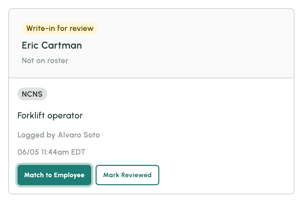
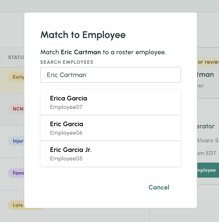
💡Note on HRIS sync: Events logged against employees in a supervisor’s TeamSense roster sync to your HRIS integration automatically. Write-in entries (for employees not in the supervisor’s roster) do not sync until an admin matches the entry to the correct employee record on the attendance page.
Managing Supervisor Participation Updating Shift Times
Supervisors can update their own shift times at any time from the bottom of the roster form. Admins can also update an individual supervisor’s shift times from their employee page.
Opting Out
Supervisors can opt out in two ways:
- **Remove all shifts** from the enrollment form — this stops the texts but keeps the supervisor in an enrolled state
- **Toggle Shift Start off** from their employee page — this is the complete opt-out
Admins can also toggle Shift Start off for any supervisor from that supervisor’s employee page.
⚠️ Important: Do not instruct supervisors to reply STOP to opt out of Shift Start. Replying STOP opts them out of all TeamSense text messages, not just Shift Start. If a supervisor accidentally replies STOP and stops receiving all TeamSense texts, contact TeamSense Support to get them re-enrolled.
Troubleshooting
A supervisor didn’t receive their shift-start text.
Check the following in order:
- Did the supervisor complete enrollment? They must have submitted the enrollment form with shift times.
- Is SMS/text messaging enabled on their TeamSense profile?
- Is their timezone set correctly? (Go to their employee page → Employee Information → Edit.) If the timezone is wrong, the text fires at the wrong time.
- Did the supervisor ever reply STOP to a TeamSense text? If so, they’ve opted out of all TeamSense messaging — contact Support to restore.
- Remember: the digest fires ~15 minutes before the enrolled shift start time, so a 6:00 AM shift receives the text around 5:45 AM. This is by design.
Someone who called off isn’t showing in the digest.
The digest pulls from the supervisor’s TeamSense roster. If the employee isn’t on their roster, their call-off won’t appear — the supervisor can still log them via the write-in option on the form. If the employee is on the roster and their call-off is still missing, contact TeamSense Support.
The supervisor logged the wrong status.
Supervisors can correct entries directly in the form — for example, changing an NCNS to Late Arrival if the person shows up. They can also clear an entry entirely, but note that clearing permanently removes the record.
A supervisor-logged event didn’t sync to our HRIS.
First check whether it was a write-in entry (for someone not on the supervisor’s roster) — those don’t sync until an admin reconciles the entry on the attendance page. If it was a standard roster entry that still didn’t sync, contact TeamSense Support.
The roster in the form doesn’t match who’s actually on the shift.
The form shows employees based on the supervisor’s existing TeamSense permissions, which may not exactly match their physical shift crew. Supervisors can use the write-in option to log events for anyone not appearing in the form
Can supervisors mark events as excused or unexcused?
No — supervisors report observations only (NCNS, late arrival, early departure). HR applies excused/unexcused status, reason labels, and points on the attendance page.
Can we set shift times for all supervisors at once?
Not currently. Supervisors self-enroll with their own shift times, or admins can set times individually on each supervisor’s employee page.
Current Limitations
-
SMS only — Shift Start does not support email notifications. Supervisors must have text messaging enabled in TeamSense.
-
No points in the digest — employee point balances are not shown in the shift-start SMS.
-
No excused/unexcused classification — supervisors log observations; HR reconciles downstream.
-
No bulk shift-time setup — shift times are set per supervisor.
-
No audit trail for cleared events — clearing an entry permanently deletes it.
-
Late arrival and early departure are observational — they indicate that an event occurred, not an exact timestamp. HR reconciles against the time clock for precise timing.